Why I Use Components in Every Project
Before Components, the same sections lived on every page with the same content. If I needed to change one word or one sentence, I had to open every page and edit each copy. It took time and it was inconvenient.
Now I fix the information once, and the change appears everywhere the Component is used. Later Webflow added Properties, and that made Components even more useful. With Properties, I can change the content of a Component on the exact page where I need it.
What I Turn into a Component
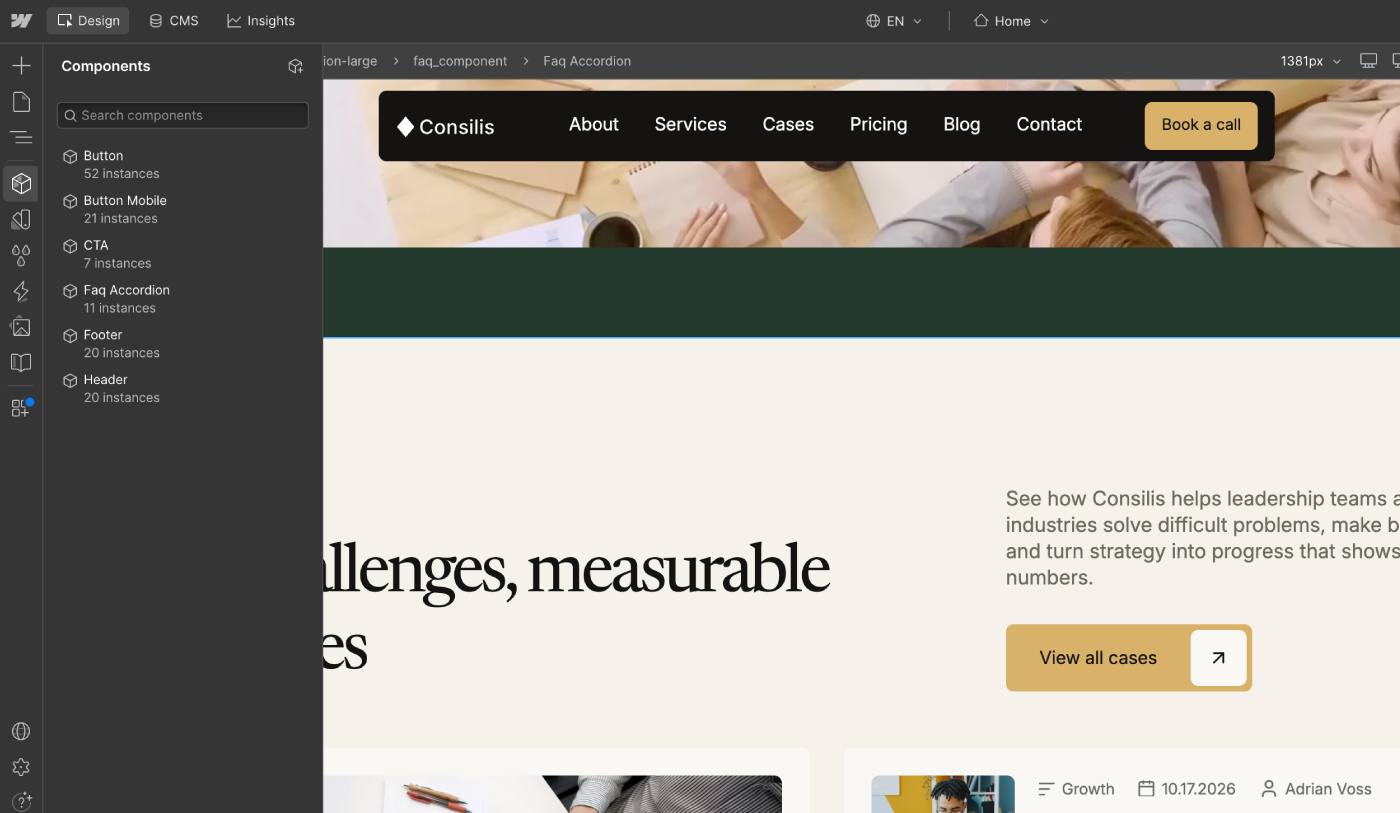
I always make a Component from the header, the footer, the buttons and the main sections that repeat across the site. A CTA section or an FAQ with questions is a typical example. Repeated cards work well as Components too. I use the same approach in my templates, which follow the system described on the Webflow Template System page.
Here is how many Components each template has:
Which sections should be Components? Decide it before the design.
Properties I Set Up
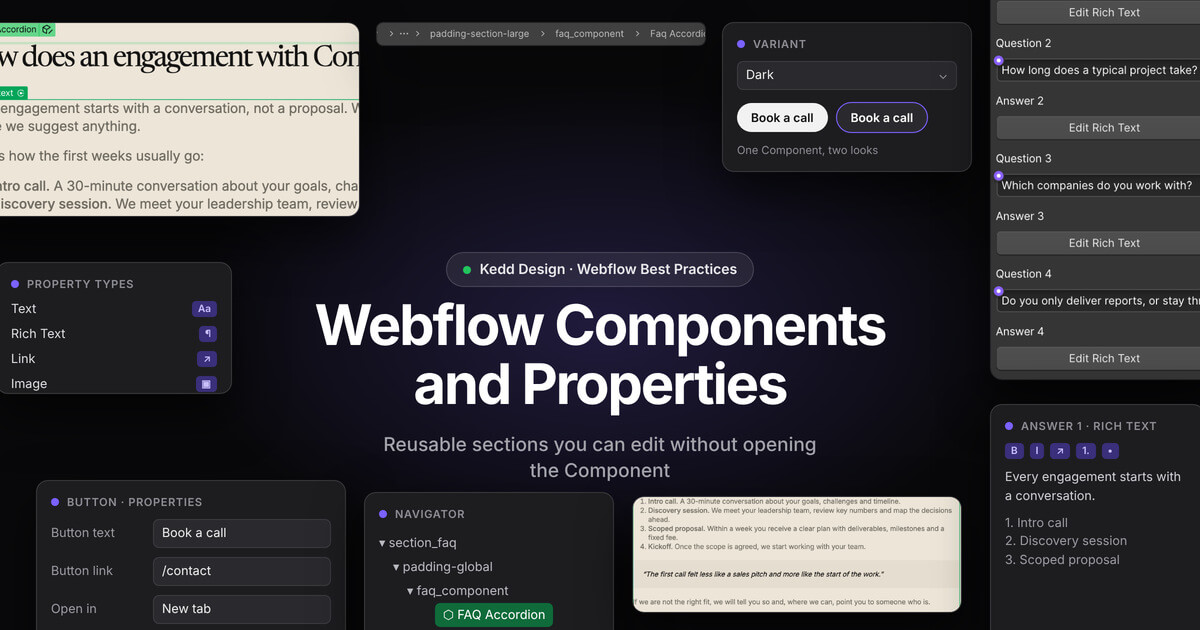
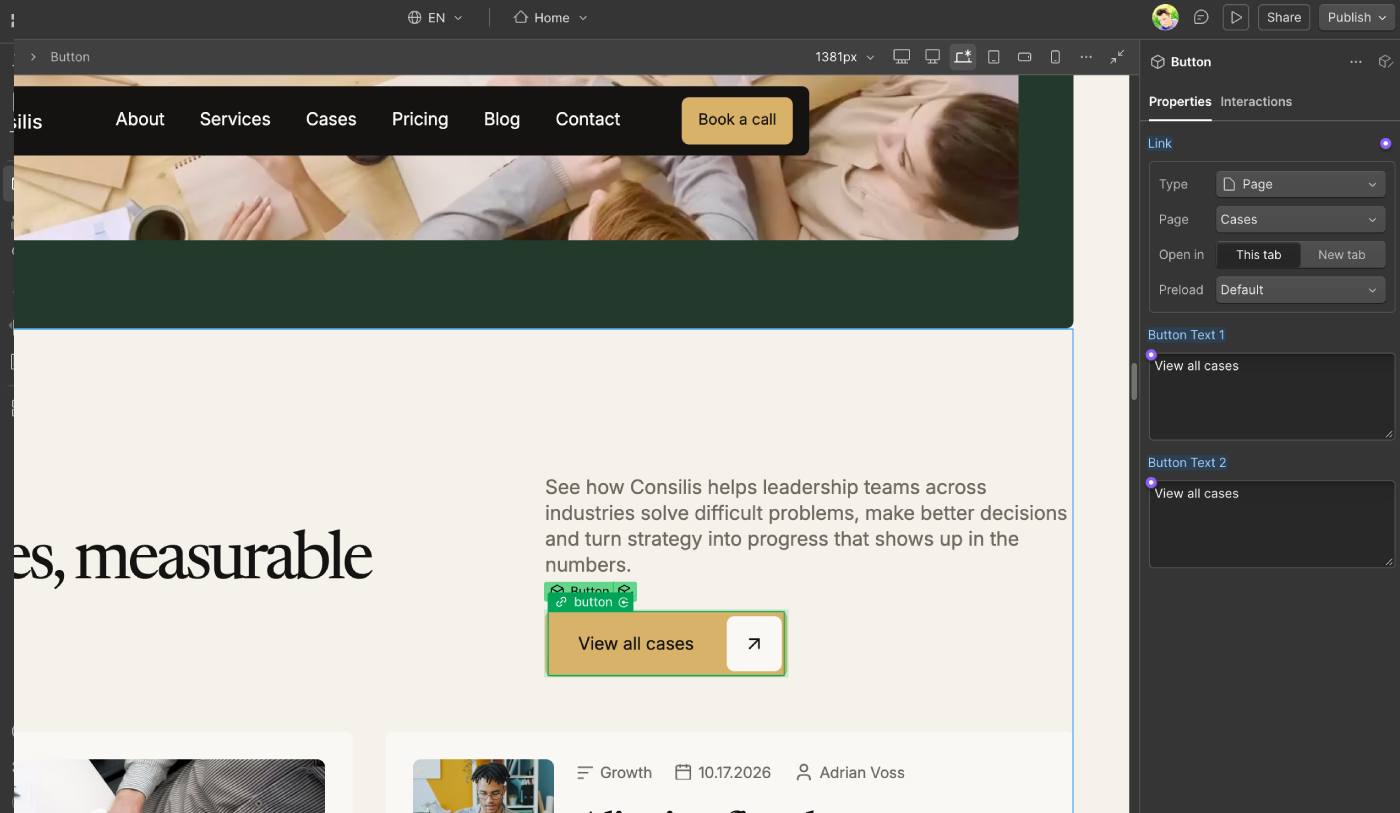
Properties are fields in the Properties panel. They let you edit the content of a Component without opening it. This is very useful for clients, because most of them do not know Webflow. Changing a field in a panel is much easier for them than looking for text inside a Component.
The client selects the Component, adds a link, writes the button text and chooses how the link opens on that page.
Example: FAQ Accordion with Rich Text Answers
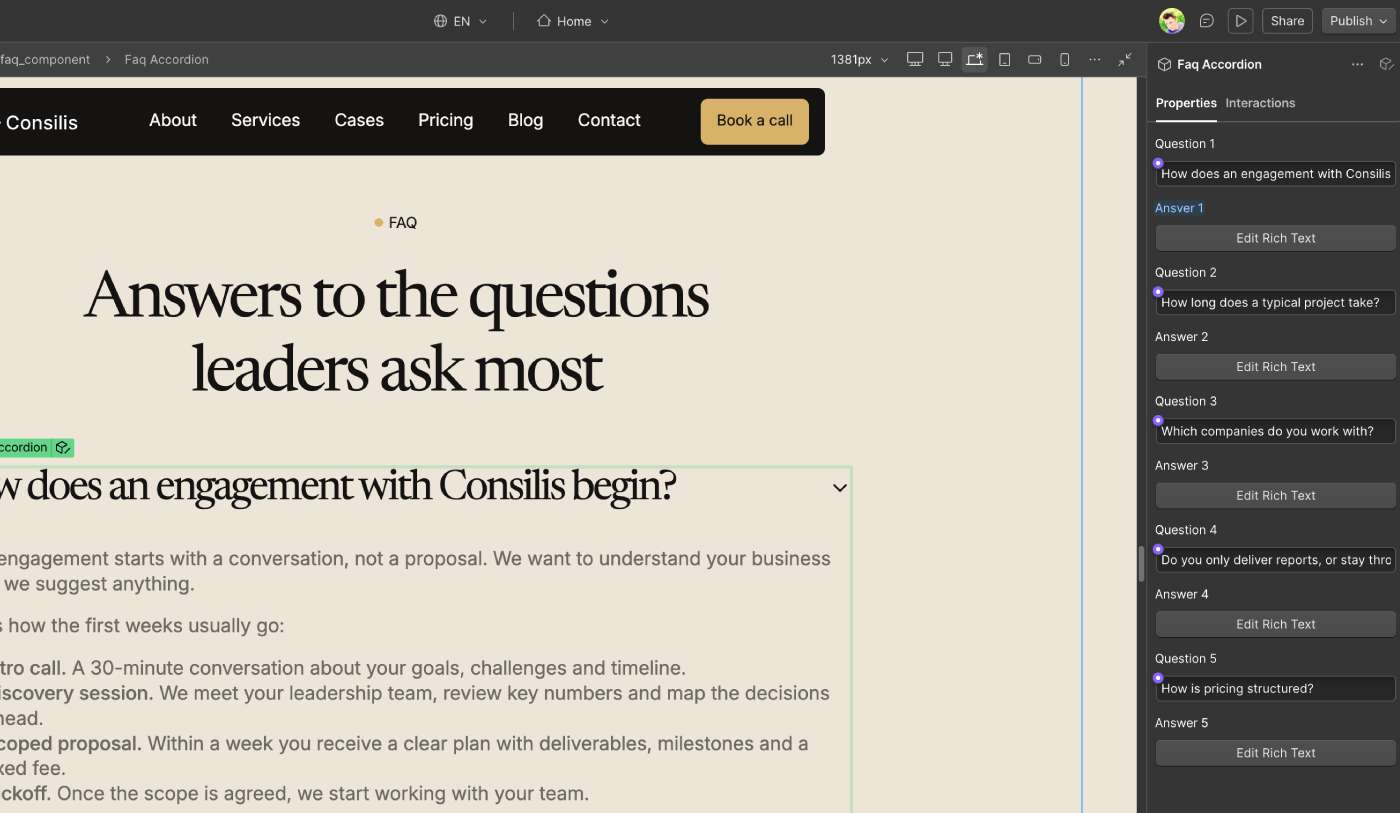
In Altuss, the FAQ Accordion is a Component with 6 questions, 6 answers and an image in the section. Consilis uses the same approach with 5 questions and answers. In both templates, every question and answer can be changed from the Properties panel without entering the Component.
The answers are Rich Text, so the client can add numbered and bulleted lists, quotes, bold text, subheadings and links. Structured answers like this are easier for search engines and AI agents to read than plain text, and they are easier for visitors to scan.
Connecting Properties to CMS Fields
Properties can also be connected to CMS fields. I have done this in several projects. You change a value in one place in the Collection and choose the right option for each item. Clients like this because they can see how the project works.
Variants for Light and Dark Sections
Variants give a Component more than one look. A common case is a Button that must be dark in some sections. With a Variant, I do it in one click instead of creating a second Component. The same idea works for a whole section: one Component, one light version and one dark version. Most of my clients like this approach. You can read how Variants work in the Webflow Help article on Component variants.
How I Name Components
A Component name must be clear to a person and answer one question: what is this? I write every word with a capital letter: Button, FAQ Accordion, CTA, Testimonials, Hero Section. Abbreviations are written in capitals. This follows the same logic as my Client-First class naming rules.
Animations Inside Components
Interactions work well inside Components. An animation runs smoothly on every page where the Component is used, not only on one. I still check everything before I hand a project to a client.
Mistakes I See in Templates That Clients Buy
Many of the templates I work with give little attention to Components. Here is what I fix most often:
- Components without Properties. The Component exists, but there is no way to edit content from the panel. Some clients do not even know what a Component is, so I explain it and add the missing fields.
- Too many Components. In one template, 8 of 10 sections were Components, and most of them did not need to be. The client wanted static content instead.
- Fixed text width inside the Component. The client added a longer text, and the whole section layout broke. I had to open the Component and set widths that work for any text length.
- A Button with a text Property but no Link Property. Every button had the same link, so the client could not set a different one for each button.
A Component should make editing easier. If it makes editing harder, the structure is wrong.
The Mistake I Made When I Started
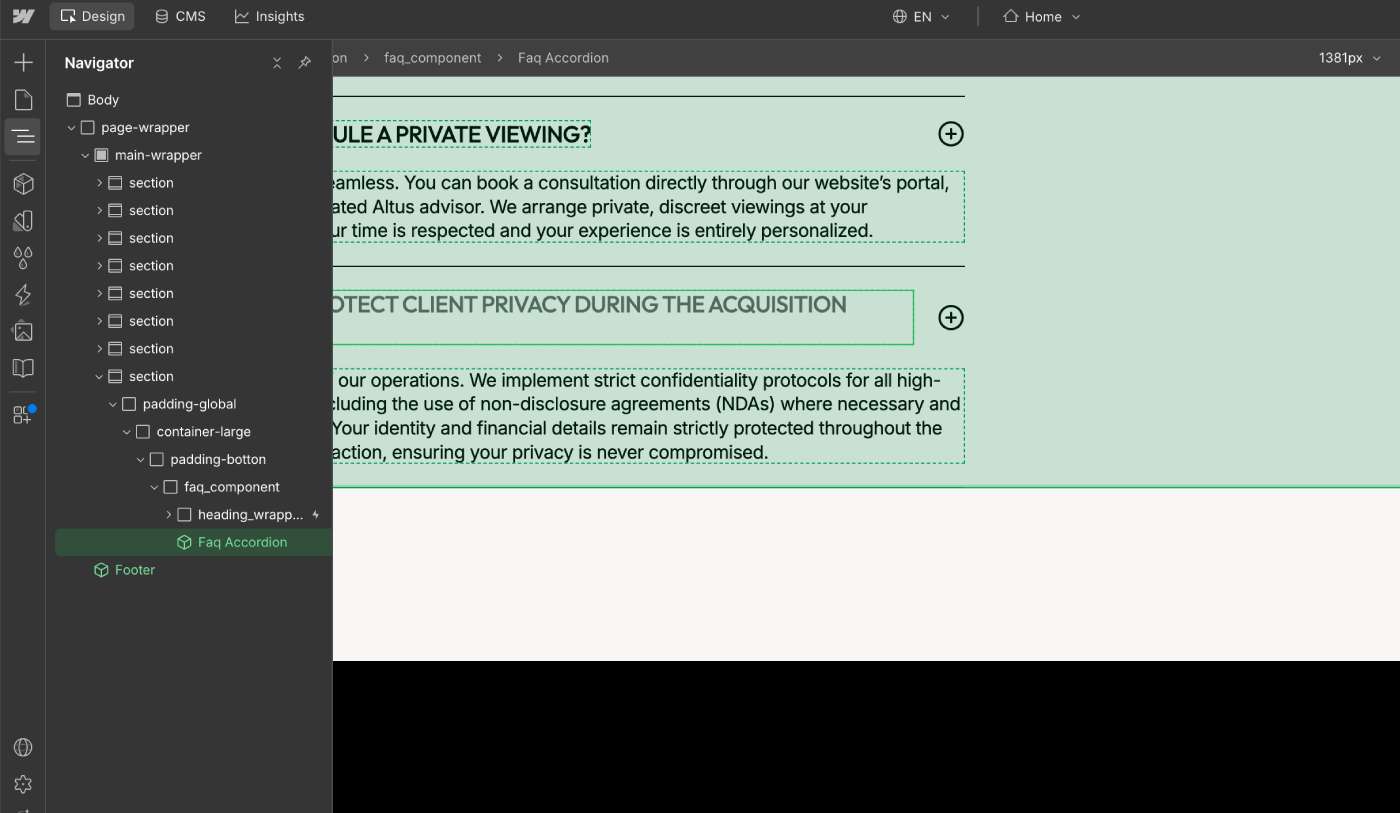
When I created a Component, I put everything inside, including the classes that set spacing. But pages often need different spacing, and I could not change it without entering the Component. Now I make the Component only from the content. The section wrapper and the spacing classes stay on the page, where they are easy to edit.
Why Properties Matter for Customization
In October 2026, I worked with 17 clients. For every one of them, I created new Components, showed how to work with them and explained why they matter. Many clients had never used Properties before. After the setup, they could change text, links and images themselves. If you bought a template and want it prepared like this, I can do it through my Webflow customization service.
My Advice for Beginners
Working with Components is not difficult, and you can learn it quickly. Build a complete section first, and only then create a Component from it. If you have not decided which Properties you need, it is not a problem. You can add or remove Properties in an existing Component at any time. The official Webflow Help page on Component properties explains every Property type.