Webflow Best Practices
Webflow Best Practices Guides




Webflow Best Practices: Common Questions

What are Webflow best practices, and why do they matter?
Webflow best practices are the working rules that keep a project clean as it grows. They cover class naming, page structure, Variables, Components, CMS architecture, SEO settings, performance, and accessibility.
A site built without them can look perfect on launch day and become hard to edit a month later. A site built with them stays easy to update, hand over to a client, or expand with new pages.
I follow these principles in every template and customization project. You can see how they work together on the Webflow Template System page.
Good structure is invisible to visitors, but it decides how fast you can change anything later.
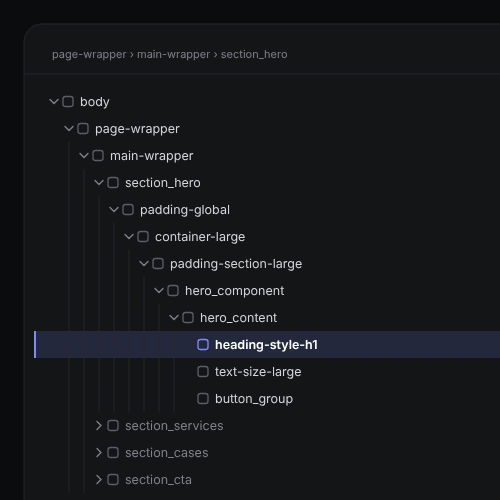
Why should I use Client-First for class naming?
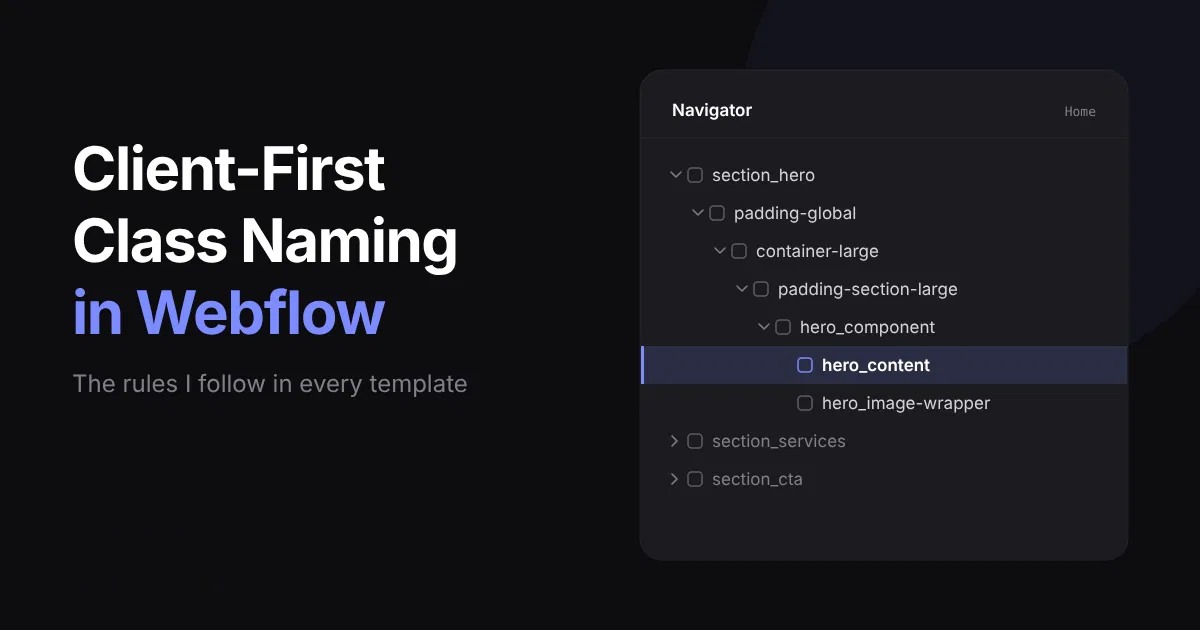
Client-First by Finsweet gives every project one predictable system for naming classes and organizing sections. Anyone who opens the project, whether it’s you, a client, or another developer, can understand the structure within minutes.
In practice, it helps you:
- Avoid random class names and duplicate styles
- Reuse utility classes for spacing, text, and layout
- Change a style in one place and see it applied across the site
- Add new sections without breaking existing ones
I use Client-First 2.1 in all my templates, and I explain how to choose a developer who works this way in the guide to choosing a Webflow developer.
If you can’t understand a class name without opening the element, the structure is working against you.
How should I use Variables and Components?
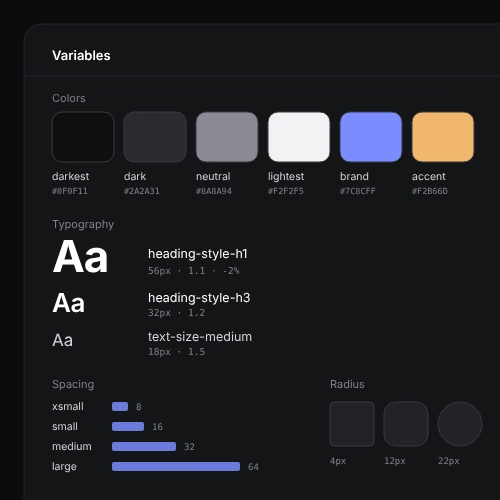
Use Variables for everything you might want to change globally: colors, font sizes, spacing, gaps, and border radius. When your brand colors change, you update them once instead of editing hundreds of elements.
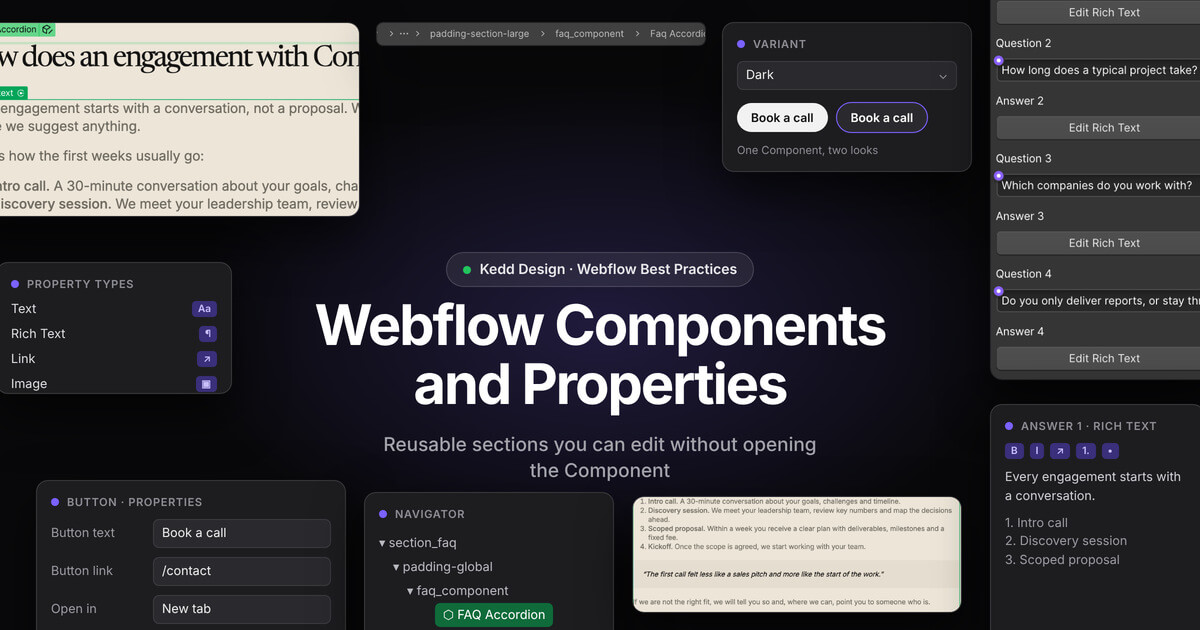
Use Components for anything that repeats across pages: navigation, footer, buttons, cards, FAQ blocks, and repeated sections. With Component properties, you can make the text, links, and labels editable from the properties panel, so you don’t need to open the Component itself.
The rule I follow: if you see the same block twice, it should probably be a Component. If you type the same value twice, it should probably be a Variable.
Variables control how the site looks. Components control how it is built. Together they make customization fast.
What is the best way to structure Webflow CMS collections?
Plan the collection before you design the pages. Each Collection should have clear, meaningful field names, so any editor understands what each field is for.
A well-built Collection usually includes:
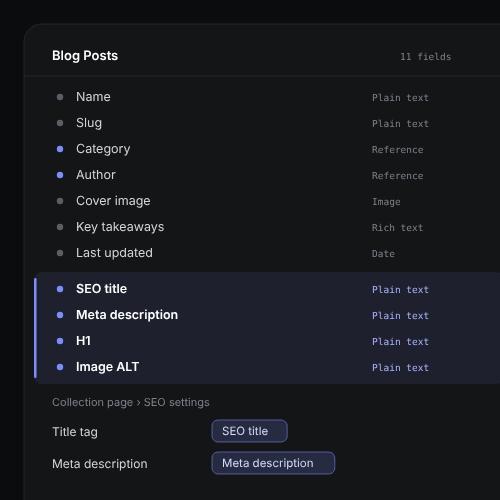
- Core content fields: title, slug, image, description, category, date
- Reference fields to connect related content, such as posts to categories or authors
- Separate SEO fields: SEO title, meta description, and H1
- ALT text fields where images need unique descriptions
Connect the SEO fields to the Collection page settings. That way every CMS item gets its own title and description instead of repeating the same metadata across the whole Collection.
A CMS should grow with your content. If adding the hundredth item feels as simple as adding the first, the structure is right.
How do I keep a Webflow website fast and accessible?
Performance and accessibility often come from the same habits.
For speed:
- Use modern image formats such as AVIF and set image dimensions
- Lazy-load images below the first screen, but not the main hero image
- Use Webflow’s native interactions first, and add custom code only when needed
- Remove unused scripts, libraries, pages, and styles
For accessibility and clean HTML:
- Use semantic elements: header, nav, main, section, and footer
- Keep a logical heading hierarchy
- Write descriptive ALT text and link text
- Check color contrast and visible focus states
Check the result at every breakpoint, from 1920px displays down to mobile.
A fast, accessible site is easier for people to use and easier for search engines to understand.
What are the most common Webflow mistakes to avoid?
These are the issues I fix most often when I customize someone else’s template:
- Default class names like “Div Block 3” that explain nothing
- Too many combo classes that make styles unpredictable
- Hard-coded colors and sizes instead of Variables
- Duplicated sections where a Component should be used
- One generic meta title reused across a whole CMS Collection
- Heading animations that split text into single letters, which add unnecessary HTML elements and can complicate the heading structure
- Unused pages and Collections left in the project
- Layouts checked only on desktop
Most of these are cheaper to fix before launch than after. If you want help, I can audit your project and clean it up through my Webflow customization service.
Fixing structure early is always faster than rebuilding later.