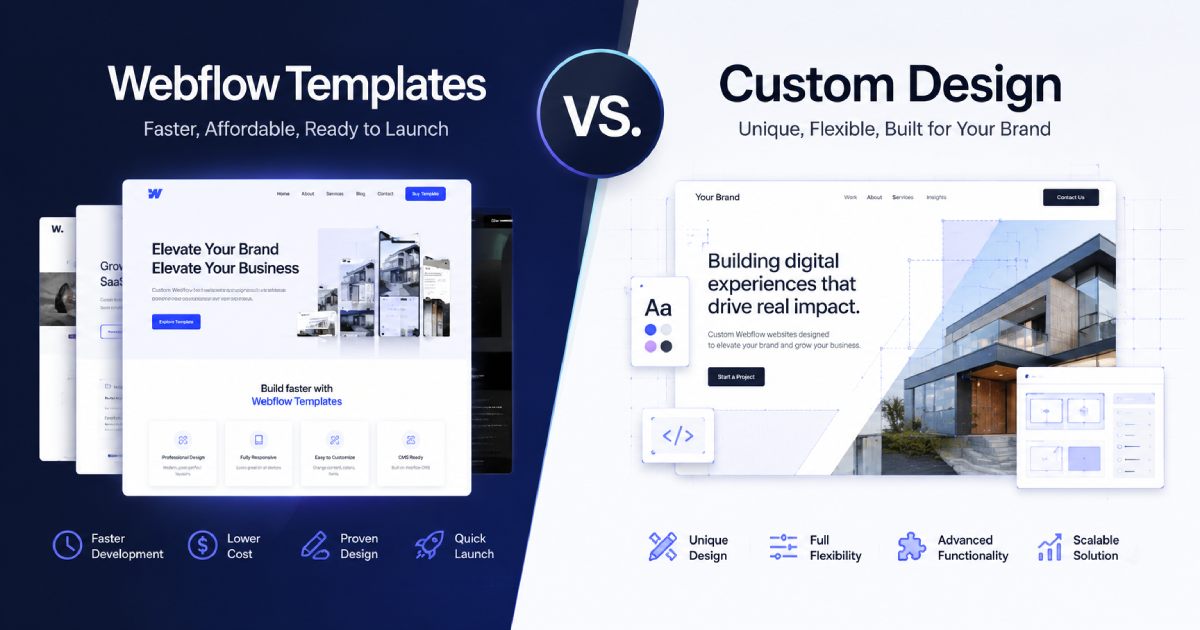
Why Choosing the Right Webflow Template Matters
Have you decided to buy a Webflow template for your business or services but don't know where to start? This is a common situation, especially when the Webflow Marketplace offers thousands of templates. It is easy to get lost.
You can spend hours comparing dozens of templates and still not know which one to choose.
On one hand, there are many options. On the other hand, choosing the right template can save you a lot of time and money in the future. It is not only about a beautiful design. You will also need to customize the template, understand its structure, work with CMS Collections, and handle at least the basic SEO settings. Today, it is also worth thinking about AI search and AI assistants.
If you follow a few simple steps, choosing the right template becomes much easier. In this guide, I will share my experience and give you practical tips to help you choose the best Webflow template for your project.
Define Your Website Goals Before Choosing a Template
Before choosing a template, you need to understand what your future website should do. Don't choose a template only because it looks beautiful. Think about the purpose of your website and the features you really need.
A freelancer usually needs a portfolio website. A photographer also needs a portfolio, but with different functionality and a different CMS structure. A real estate agent needs property listings for sale or rent, together with a dedicated CMS Collection. And what about a blog? Maybe you need one, or maybe you don't.
These are the questions you should answer before you start searching on the Webflow Marketplace.
Identify Your Business Type
When you open the Webflow Marketplace, you immediately see hundreds of categories, free templates, and premium templates. If you are looking for a free Webflow template, I also wrote a detailed guide on how to choose the right one for your website. Many people start opening random templates right away, and this is the first mistake.
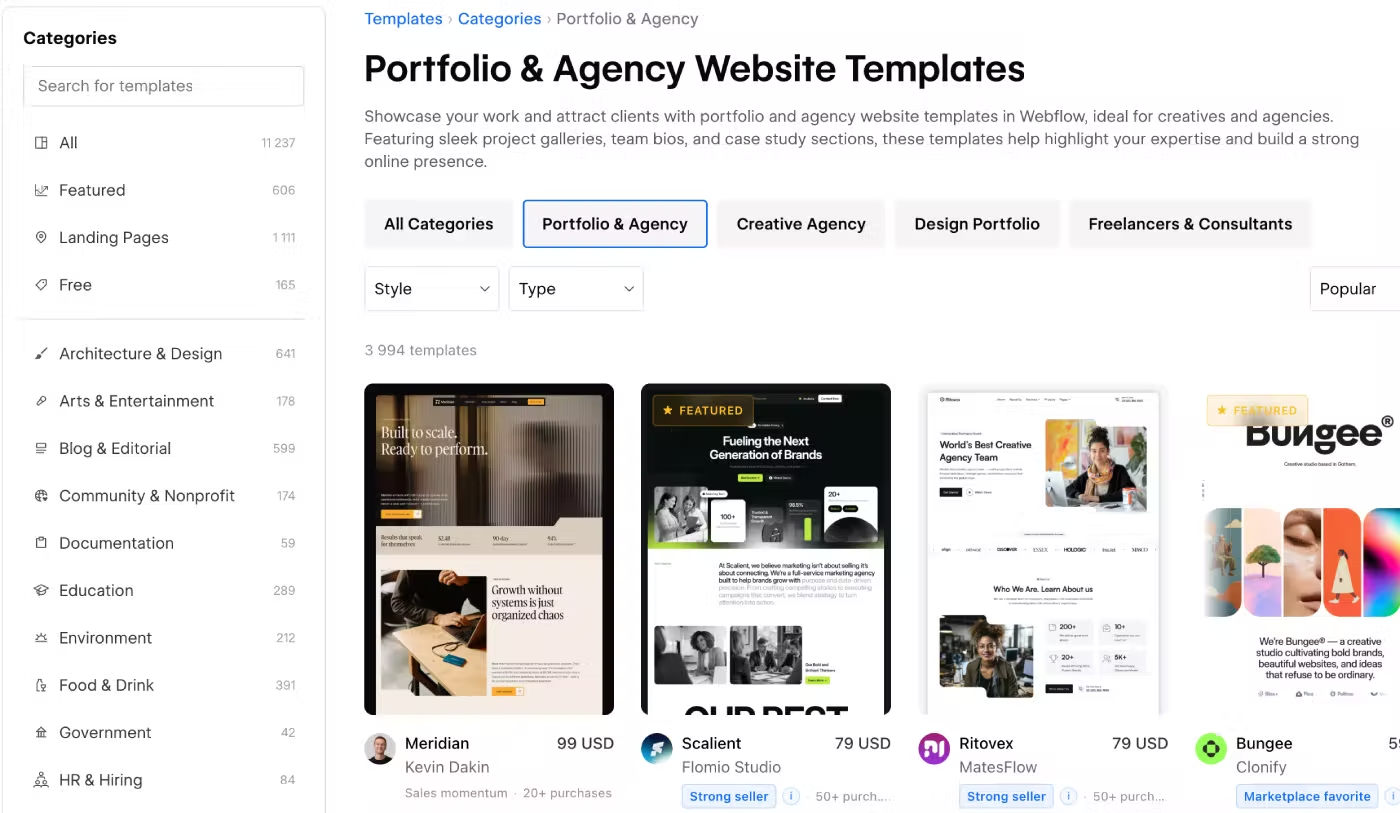
The first thing you should do is choose the correct template category from the left sidebar.
Always start with the category that matches your business or services.
For example:
- Portfolio & Agency Website Templates are great for creative agencies, freelancers, designers, photographers, and video creators.
- Technology Website Templates are the best choice if you are building a SaaS product or technology company.
List the Features You Need
After choosing the right category, think about the features your future Webflow template should include. Having the right functionality from the beginning can save you both time and money later. Here are some important features to check:
- Projects CMS Collection. Very useful for freelancers, designers, photographers, and portfolio websites.
- Blog. If you plan to publish articles, make sure the template already includes a blog. Otherwise, you can remove the Blog CMS after purchasing the template if you don't need it.
- Team. Many companies need a team section. If you work alone, you can remove this collection or reuse it for another purpose.
- Careers. A CMS Collection for hiring new employees. It is especially useful for companies that provide professional services or work in real estate.
- Forms. If you want visitors to contact you through a contact form, make sure the template includes one. Some businesses also use online booking services or meeting scheduling tools instead of traditional forms.
- Filters. If your blog, portfolio, case studies, or property listings require filtering, check whether the filters are already built into the template.
- Multi-reference Fields. These fields connect information between different CMS Collections. They are very useful and can always be customized for your own content.
- Search. If your website needs a search function for blog posts, services, products, or CMS content, make sure it is already included.
This is only a small part of the available features. The most important thing is to clearly understand what your website needs before buying a Webflow template.
How do I evaluate a Webflow developer or agency offering free templates?
Webflow developers usually use free templates to show off the same skills they apply to their paid ones. When evaluating one, pay attention to these key points:
- Methodology — Which development methodology does the developer follow (for example, Client-First)?
- CMS structure — How are the Collections built, and do the fields cover the minimum information needed for real content?
- Responsive design — Is the layout well-built across devices, and are basic SEO settings in place?
- Figma file — Is a Figma source file included with the template?
- Support — Does the developer offer a free consultation or any support after download?
A developer who covers these points on a free template is usually just as reliable for paid projects — it shows they build with care and are willing to help even before a purchase.
How to Evaluate a Webflow Template Before Buying
On the Webflow Marketplace, templates are available at different prices, such as $49, $79, $99, or $169. However, don't think that a $49 template is worse than a $99 template. Every template goes through a review process before it is published and must meet Webflow's quality standards. The price usually depends on the template type and the number of included pages.
For example:
- One Page templates usually cost around $29–39.
- Multi Page templates are often priced between $79–99.
- Multi Layout templates usually cost more because they include multiple versions of important pages such as the Home, Services, Contact, and other pages.
The price is also affected by features like CMS Collections and Ecommerce. In most cases, the more pages and functionality a template includes, the higher the price. Besides the price, Webflow has recently added several new marketplace badges that can help you evaluate templates.
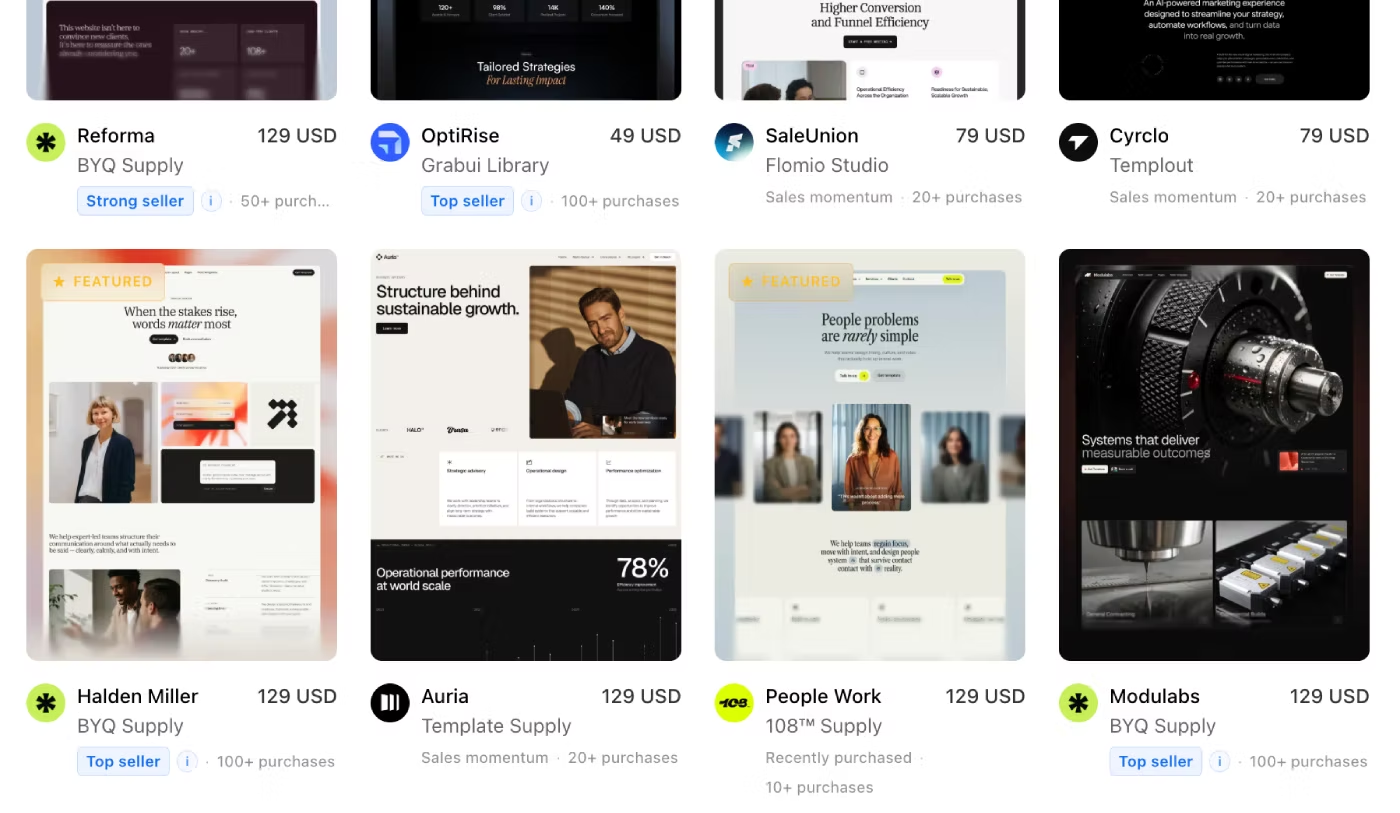
Featured
Recommended templates selected by the Webflow team. This is their opinion, and while it is worth considering, it doesn't always mean the template is better than others. A template without this badge may still have more useful features. Keep in mind that this badge can change over time depending on sales and popularity.
Sales Momentum
Shows templates that are quickly becoming more popular and selling well.
Marketplace Favorite
Highlights templates that the marketplace team considers to have excellent design and quality.
Strong Seller
Templates with consistently good sales performance, usually more than 50 sales.
Top Seller
Awarded to templates with outstanding sales results over time, often 100, 200, or more sales.
I also recommend checking the Newest filter. It shows recently published templates with the NEW badge. These templates are often overlooked simply because they are new, but many of them are very well built and may perfectly match your project.
Don't skip this section when searching for a template.
Check the Homepage Structure
Open five templates from your category. Try selecting templates from the Popular, Newest, and Best Sellers sections that match your preferred style. You can also filter templates by Type (One Page, Multi Page, or Multi Layout) to narrow down your search. Start by reviewing only the homepage. In most cases, you can quickly understand whether the template is a good fit.
Click Preview in Webflow. This allows you to open the template in the Webflow Designer and inspect how everything is built.
Look closely at the page structure.
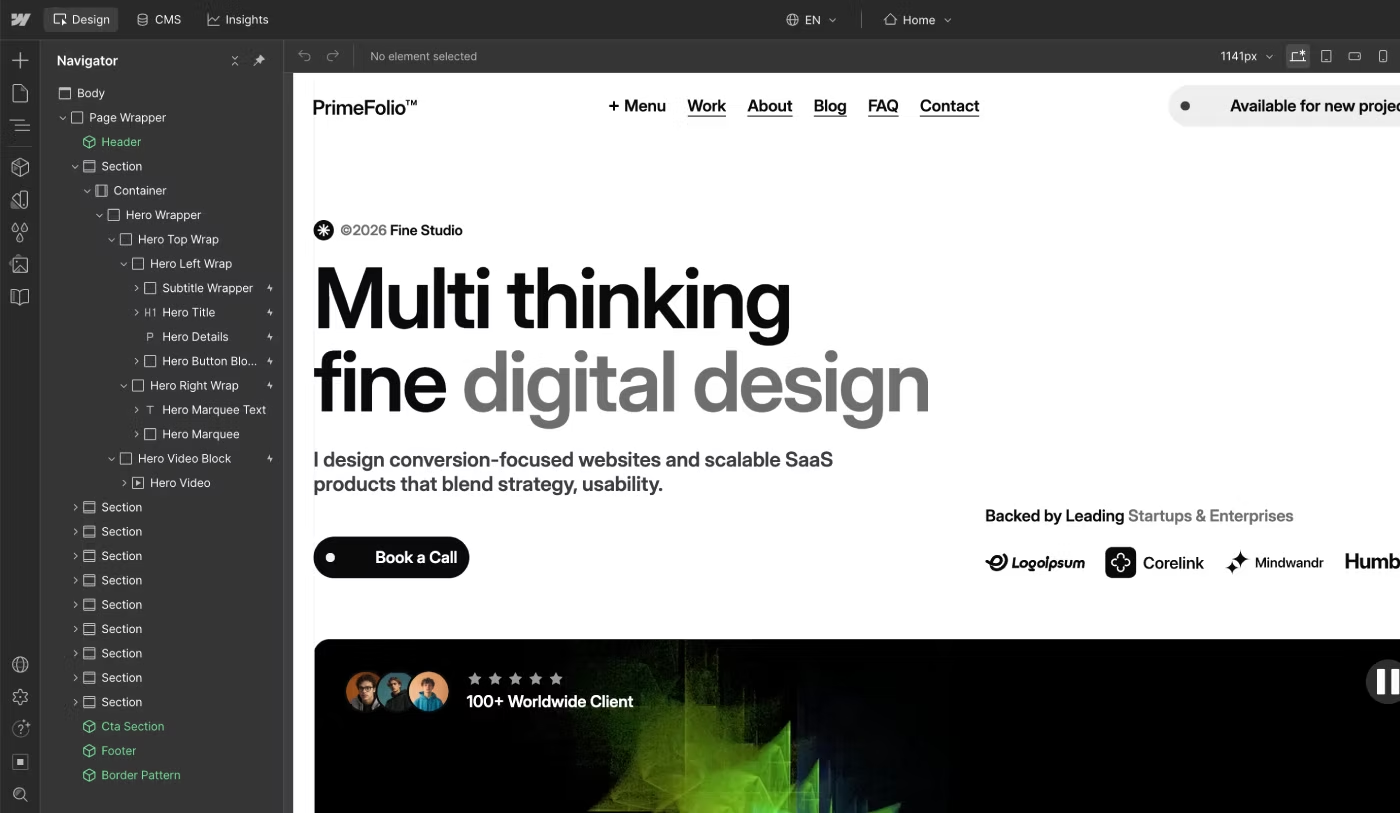
Check how the homepage is divided into sections, what methodology the author uses, and how classes are named.
Pay attention to empty class names such as Div Block or Div Block 14. If you see many of these, there is a good chance the template was built very quickly or imported from Figma without proper cleanup.
If you want a template that is easy to maintain and customize in the future, I recommend avoiding templates with poorly organized class names.
Review All Included Pages
After checking the homepage, review the other pages included in the template. Look at the page structure and the heading hierarchy (H1, H2, H3). Open the Audits panel in the left sidebar to see if Webflow reports any accessibility or structural issues.
Check all CMS Collection Pages. Review how the collections are organized, how the custom fields are named, and whether everything is easy to understand. Also review the technical pages such as:
- Style Guide
- Licenses
- Changelog
These pages should explain the design system, reusable classes, and important template information.
Inspect Components and Reusable Sections
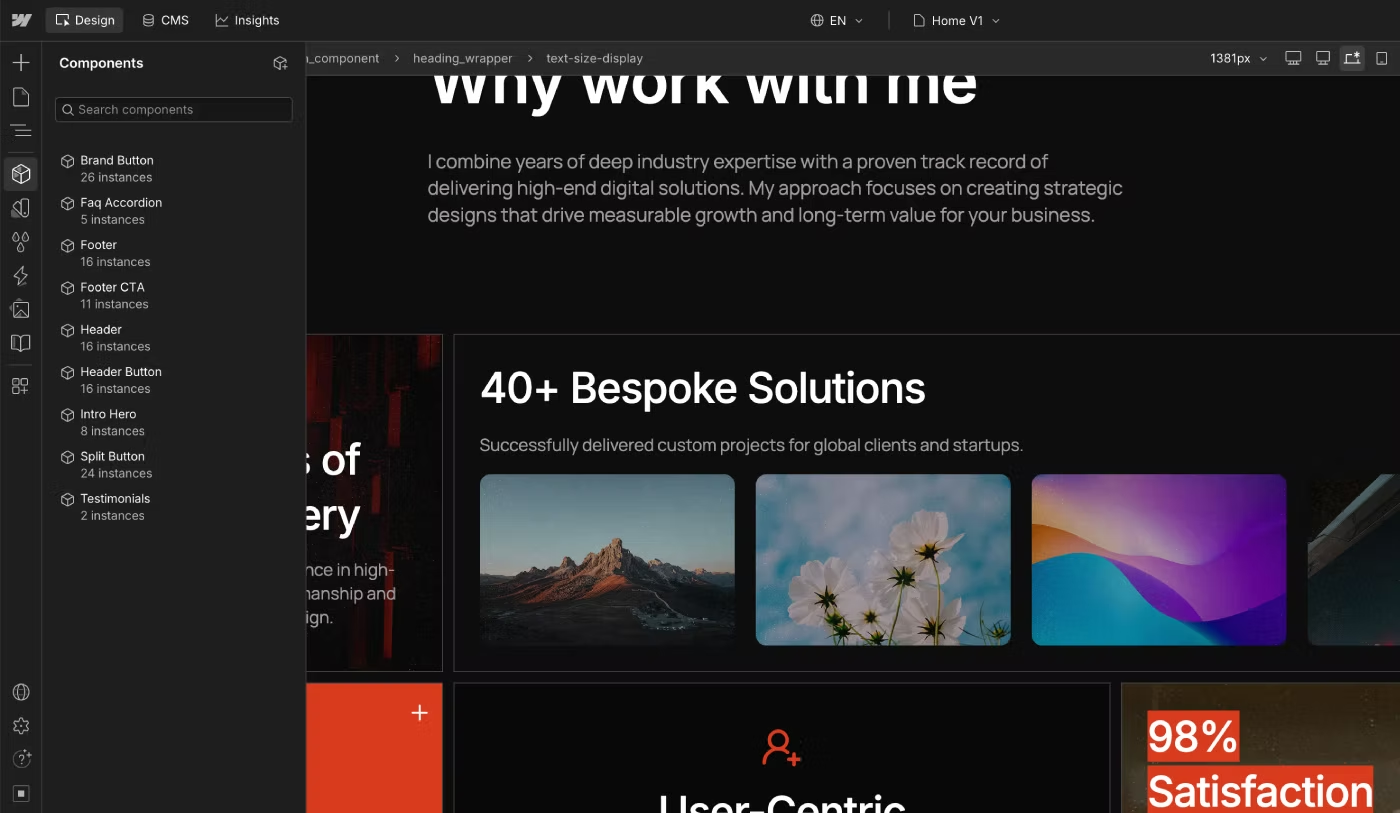
Open the Components panel and see how many reusable components are included in the template. Check where these components are used and whether they can be updated from one place. Some components are connected to Component Properties, allowing you to change content without editing the component itself.
The Header and Footer should always be built as reusable components. This allows you to update navigation or footer content across the entire website from a single location.
Evaluate the CMS Structure
Every Webflow template is reviewed before it is published on the Marketplace. However, I recommend paying special attention to the CMS Collections.
In most cases, you will customize or expand the CMS after purchasing the template. To reduce the amount of work later, review how each collection is built. Check whether the structure fits your needs and whether it already includes the custom fields you expect.
CMS Collections
First, look at how many CMS Collections are included and what each one is used for. Common collections include Projects, Team, Pricing, and Blog. If the template includes a blog, check whether it also has a separate Categories collection. Think about whether you need dedicated category pages for your website. These are important questions to answer before choosing a template.
CMS Fields
Next, review the Custom Fields inside each collection. Open the collection settings and check whether the fields are clearly named and easy to understand. Every field should have a logical name that explains what information it stores. If field names are confusing, managing content later becomes much more difficult.
If needed, you can always add new custom fields and connect them to your dynamic CMS pages. Webflow allows you to extend collections whenever your project grows.
Dynamic Templates
If you plan to scale your website in the future, review the CMS Template Pages. Think about whether you will be able to add new fields and display additional content when your project grows. Also check whether the template already includes CMS fields for SEO Title, Meta Description, and Open Graph Image. These settings are important for search engine optimization and social sharing.
Check the Style Guide and Design System
As I mentioned earlier, every professional Webflow template should include a dedicated Style Guide page. This page shows all global classes used throughout the project, including headings, spacing, gaps, buttons, forms, and other interface elements. It helps you understand how the author built the template and which methodology was used.
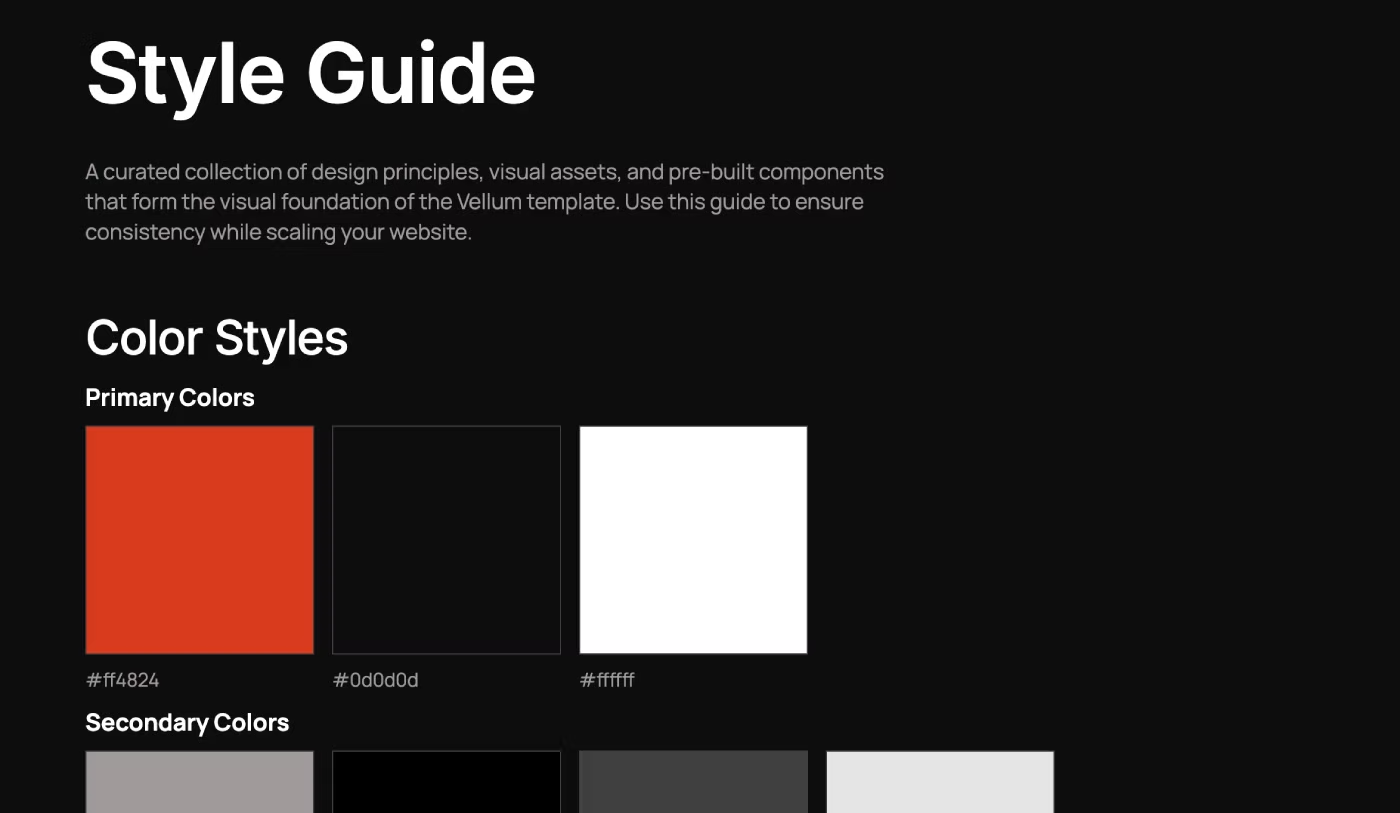
If you compare ten different templates, after carefully reviewing their Style Guides, you will probably decide not to buy more than half of them. A well-organized Style Guide also makes future customization much easier. Good templates use consistent class names and reusable styles instead of creating duplicate classes for every new section.
Variables
Open the Variables panel. According to modern Webflow best practices, all reusable design values should be stored there.
- Colors. All colors should be added as Variables with clear and meaningful names. This allows you to update colors across the entire website from one place.
- Spacing. Margins, padding, and gaps should also use Variables. Ideally, spacing values should be organized separately for each breakpoint.
- Typography. Font families, font sizes, line height, and letter spacing should all be managed with Variables. Responsive typography should also be configured for different screen sizes.
These are some of the most important things I check before buying a template. If the template author doesn't use Variables properly, I recommend thinking twice before purchasing that template.
Typography
Every page should follow a clear heading hierarchy. There should only be one H1 per page, followed by H2, H3, and the remaining heading levels. Also check the global typography classes such as:
- Body (All Pages)
- All H1 Headings
- All H2 Headings
- All H3 Headings
- All Paragraphs
- All Ordered Lists
- All List Items
These global classes should already be configured and connected to Variables. Sometimes you will find templates where the heading hierarchy is completely broken. In those cases, the design focuses only on beautiful text animations instead of proper HTML structure.
For example, I recently reviewed a portfolio template where every letter of a heading was wrapped in its own H2 element just to create an animation. This looks impressive, but it creates problems later.
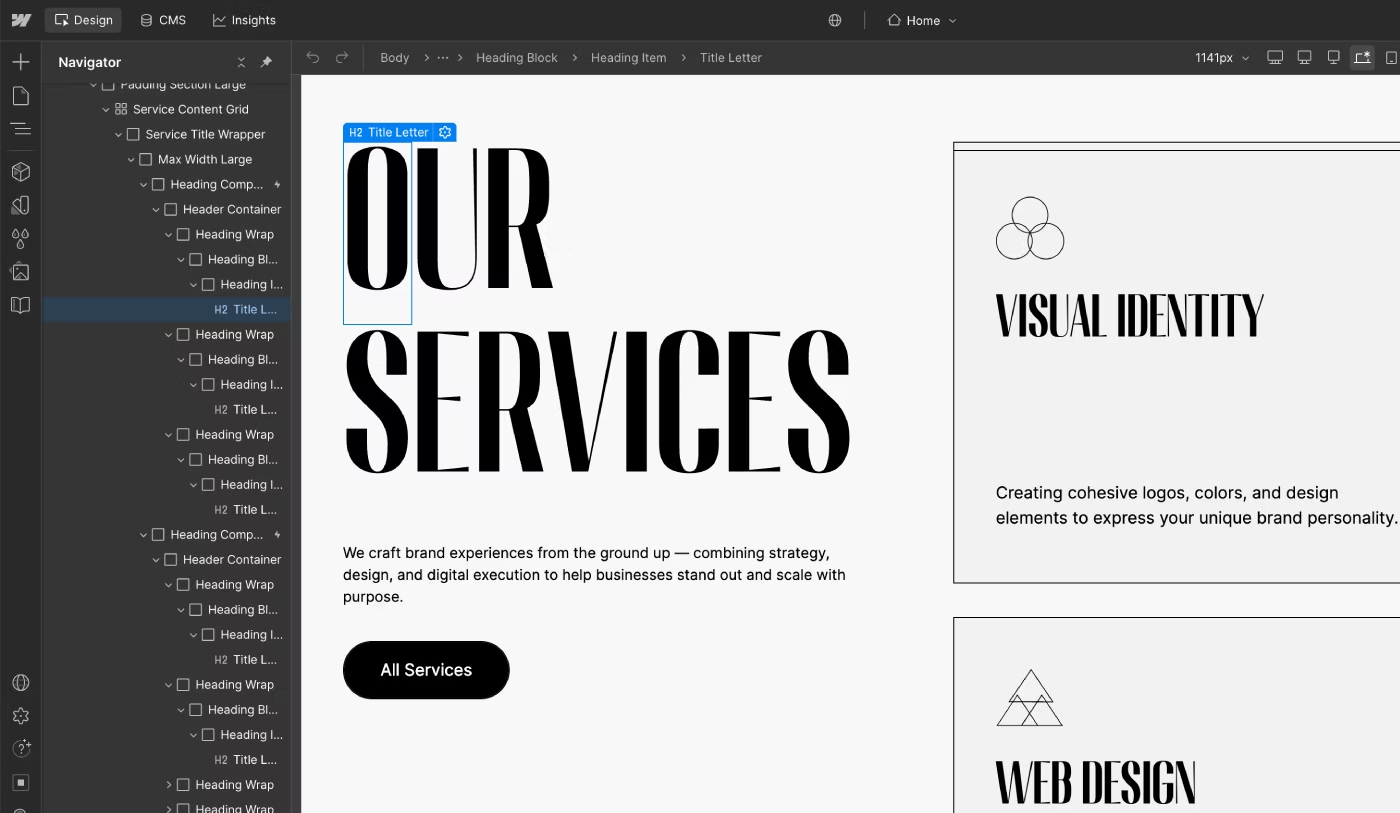
If you decide to add Localization, translated words will often have a different number of letters. You may need to rebuild the animation, create new classes, or even use another font if the original font doesn't support your language. That is why I always recommend choosing between visual effects and a clean website structure. A well-built template is much easier to scale, optimize for SEO, and maintain in the future.
Review the Responsive Design
Before buying a Webflow template, always check how it looks on different devices. The website should not have horizontal scrolling, and the layout should remain clean on every breakpoint. Make sure the content is easy to read, headings scale correctly, and images display properly on all screen sizes.
I also recommend checking the color contrast (Accessibility Contrast Ratio). All text should have enough contrast to remain readable. This is an important part of both accessibility and a good user experience.
Tablet and Mobile Layouts
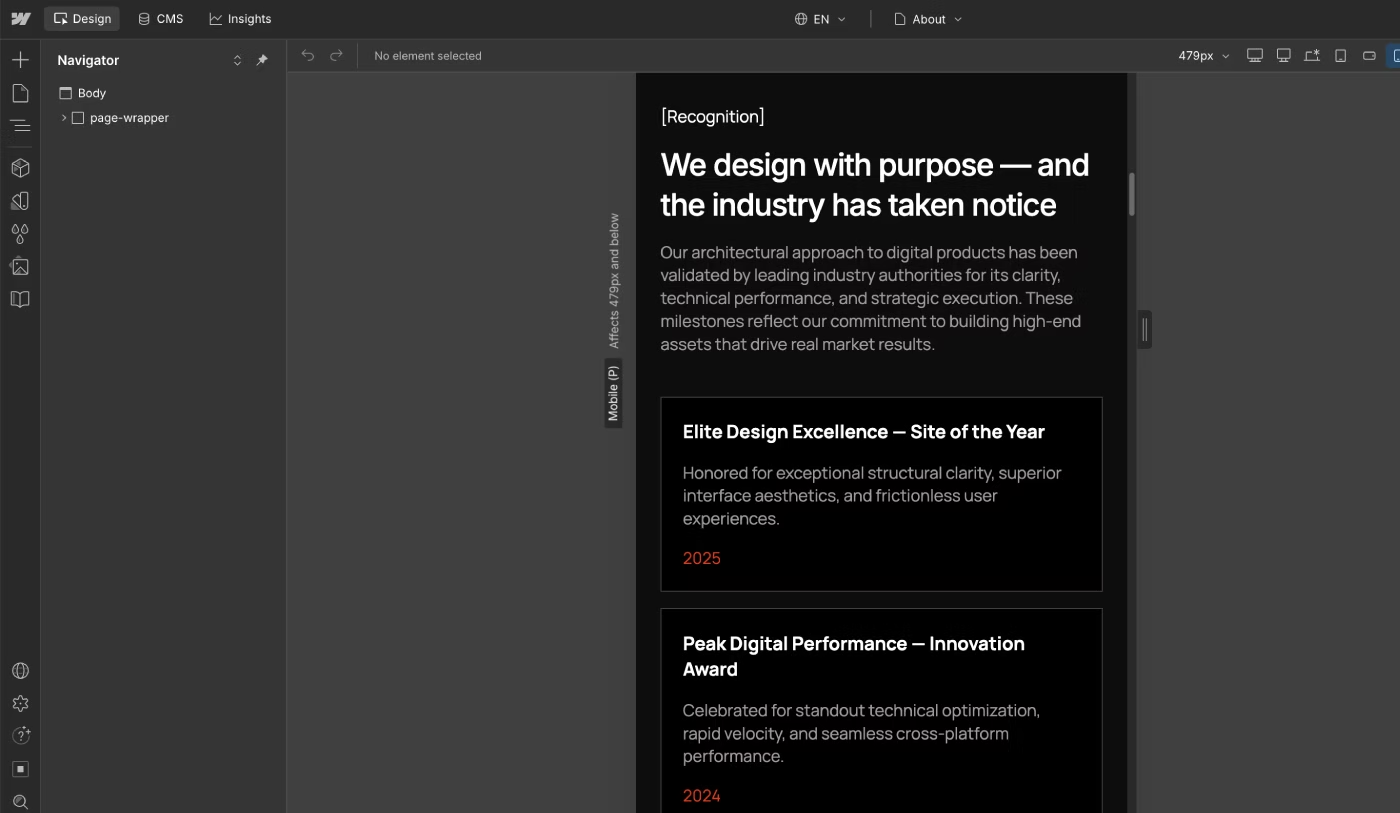
Switch to the Tablet and Mobile breakpoints and carefully review every page. Check whether the content is well organized and easy to navigate. Sections should not simply be stacked one after another if they can be arranged in a more compact and user-friendly way.
Pay attention to the typography. Make sure the font size is comfortable to read, the headings scale correctly, and animations do not make the content harder to understand.
Navigation
Don't forget to test the navigation menu on Tablet and Mobile devices. The menu should open smoothly and display correctly on every breakpoint. You can also open the template preview directly on your smartphone to see how the navigation works in a real environment.
Forms
If the template includes contact forms, review how they work on different devices. Make sure all form fields are easy to use and that the submit button is large enough to tap on mobile devices. I also recommend submitting a test form to check the success message displayed after submission.
Look at SEO Before You Buy
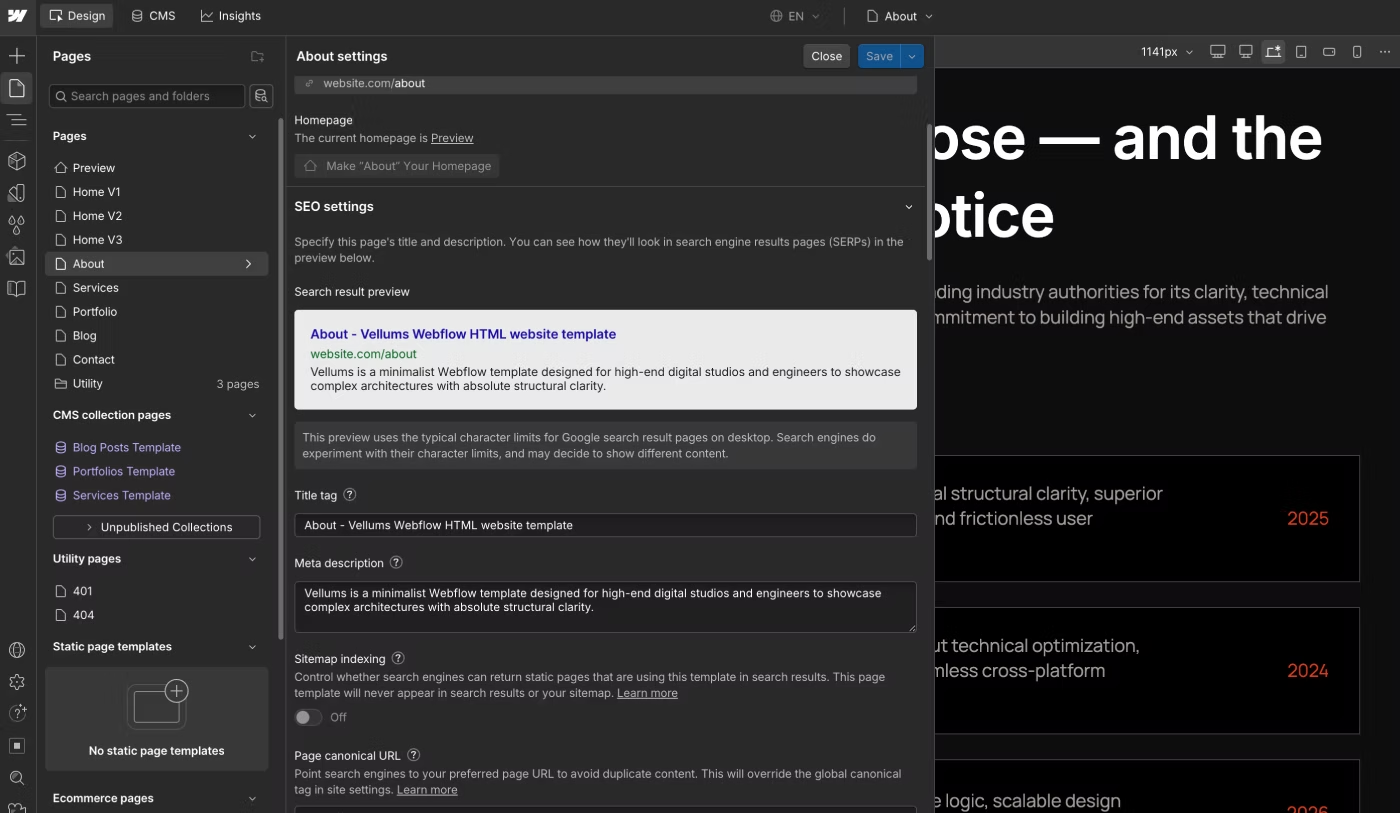
Before purchasing a Webflow template, review the basic SEO settings. Every page should have its own Title and Meta Description. The Open Graph Image should also be configured so pages display correctly when shared on social media.
You can also test the homepage with Google PageSpeed Insights. The performance score should be in a reasonable range and should not be in the red zone. Don't expect every template to score 100 points. Webflow loads its own CSS and JavaScript libraries, and some of them cannot be optimized by the template author.
Heading Structure
Every page should contain only one H1 heading. If you find multiple H1 headings on the same page, it usually indicates poor HTML structure and can negatively affect SEO. After the H1, the page should follow a logical hierarchy using H2, H3, and the remaining heading levels.
CMS SEO Fields
As mentioned earlier, every static page should include its own Title and Meta Description. For CMS Collection Pages, the template should also include dedicated SEO fields that automatically generate metadata for every CMS item.
I usually prefer creating separate CMS fields for:
- SEO Title
- SEO Description
- Open Graph Image
This makes SEO much easier to manage and gives you full control over every dynamic page.
Performance
Images should be optimized before publishing and, whenever possible, remain below 150 KB. For some images, you can also enable Lazy Loading in the image settings. This helps improve page loading speed, especially on long pages with many images.
Best Webflow Templates for Agencies and Designers
If you are looking for a Webflow template for agencies or designers, here is my personal checklist of features I recommend checking before making a purchase. A well-built template will save you time during customization and future website maintenance.
Home Page
The homepage should include:
- A clear H1 heading
- Call to Action (CTA)
- Client logos
- About section
- Services overview
- Selected work
- Process section
- Testimonials or social proof
- Blog or Insights
- Footer
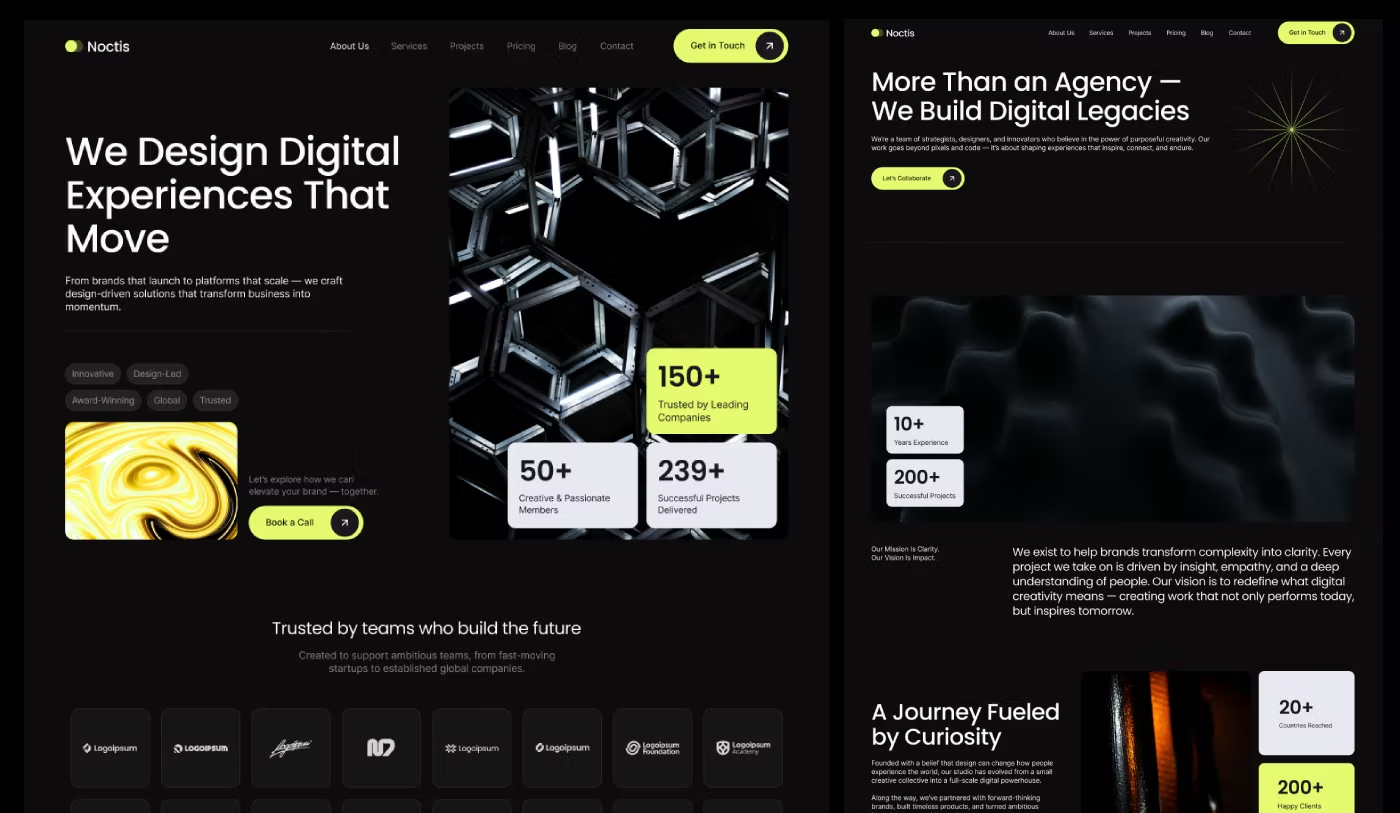
If you'd like to see these best practices in action, I recommend exploring my Noctis Webflow Template for agencies and designers.
Portfolio
The template should include a dedicated Portfolio page.
Projects should be managed through a CMS Collection.
I recommend checking whether the collection already includes fields such as:
- Project Name
- Description
- Client Name
- Completion Date
- Project Gallery
- Services (Reference Field)
- Rich Text Content
Case Studies
If you plan to publish case studies, the template should include dedicated fields such as:
- Client Overview
- The Challenge
- The Solution
- Key Results or Metrics
Services
A dedicated Services page should already be included.
Blog
If you plan to publish articles, it is much easier to choose a template that already includes a blog.
The Blog Collection should contain fields such as:
- Post Cover
- Publish Date
- Author
- Category
- Short Summary
- Rich Text Content
If needed, you can also create separate CMS pages for blog categories later. This helps target additional keywords and improves your website's SEO.
Team
If you work with a team, this page should already be included in the template.
Testimonials
Testimonials are one of the most valuable sections.
Many Multi Layout templates include different testimonial designs, allowing you to choose the version that fits your website best.
Contact
The template should include a dedicated Contact page with a contact form or integrations for booking meetings or consultations.
Best Webflow Templates for SaaS
If you are looking for a Webflow SaaS template, the requirements are different from portfolio or agency websites. A SaaS website is not only about presenting a product. Its main goal is to convert visitors into users who start a Free Trial or purchase a subscription.
As I mentioned earlier, always start by choosing the correct template category. Then look for a template that already includes most of the features you need. Here are the most important sections I recommend checking.
Product Preview
A good SaaS template should include interactive product screenshots, interface previews, animations, or product mockups. Visitors should immediately understand what your product does and how the interface looks before they sign up.
Pricing Section
The pricing section is one of the most important parts of any SaaS website.
I recommend looking for templates that include:
- Monthly and Yearly billing switch
- Clear pricing comparison
- Free, Pro, and Enterprise plans
- A highlighted Most Popular plan
Features & Benefits
The template should clearly explain the product features and how they help customers solve their problems.
How It Works
A simple step-by-step section explaining how the product works makes the website much easier to understand.
FAQ
Almost every modern Webflow template should include a FAQ section. Besides helping your visitors, FAQ content is also useful for AI assistants such as ChatGPT, Gemini, and Claude. These systems often use well-structured FAQ content when generating answers.
Best Webflow Templates for Portfolio
If you need a portfolio template, many sections will be similar to agency templates, but there are also some important differences. The main goal is to showcase your work as clearly and professionally as possible. Here are the sections I recommend checking.
Portfolio Grid
Projects should be displayed in a clean portfolio grid. It is even better if the template includes filters or categories such as:
- UI/UX
- Branding
- Motion Design
- Development

If you're looking for a portfolio website, I recommend exploring my Vellums Webflow Template to see how a scalable portfolio can be built with CMS Collections and reusable Components.
Hover Effects
Well-designed hover effects help present projects in a more engaging way without distracting visitors.
Featured Work
The homepage should include selected projects with:
- Project thumbnail
- Client name
- Year
- Industry
This allows visitors to quickly see your best work.
Experience / Timeline
A short timeline showing your professional experience, previous companies, or major projects helps build trust and demonstrates your expertise.
Best Webflow Templates for Real Estate
If you work in real estate, are a realtor, or manage rental properties, I strongly recommend choosing a template designed specifically for this industry. These templates already include the sections and CMS structure required for property listings.
The Property CMS Collection should include fields such as:
- Listing Type
- Property Status
- Price
- Area / Square Footage
- Bedrooms
- Bathrooms
- Garages
- Property Address
- Property Gallery
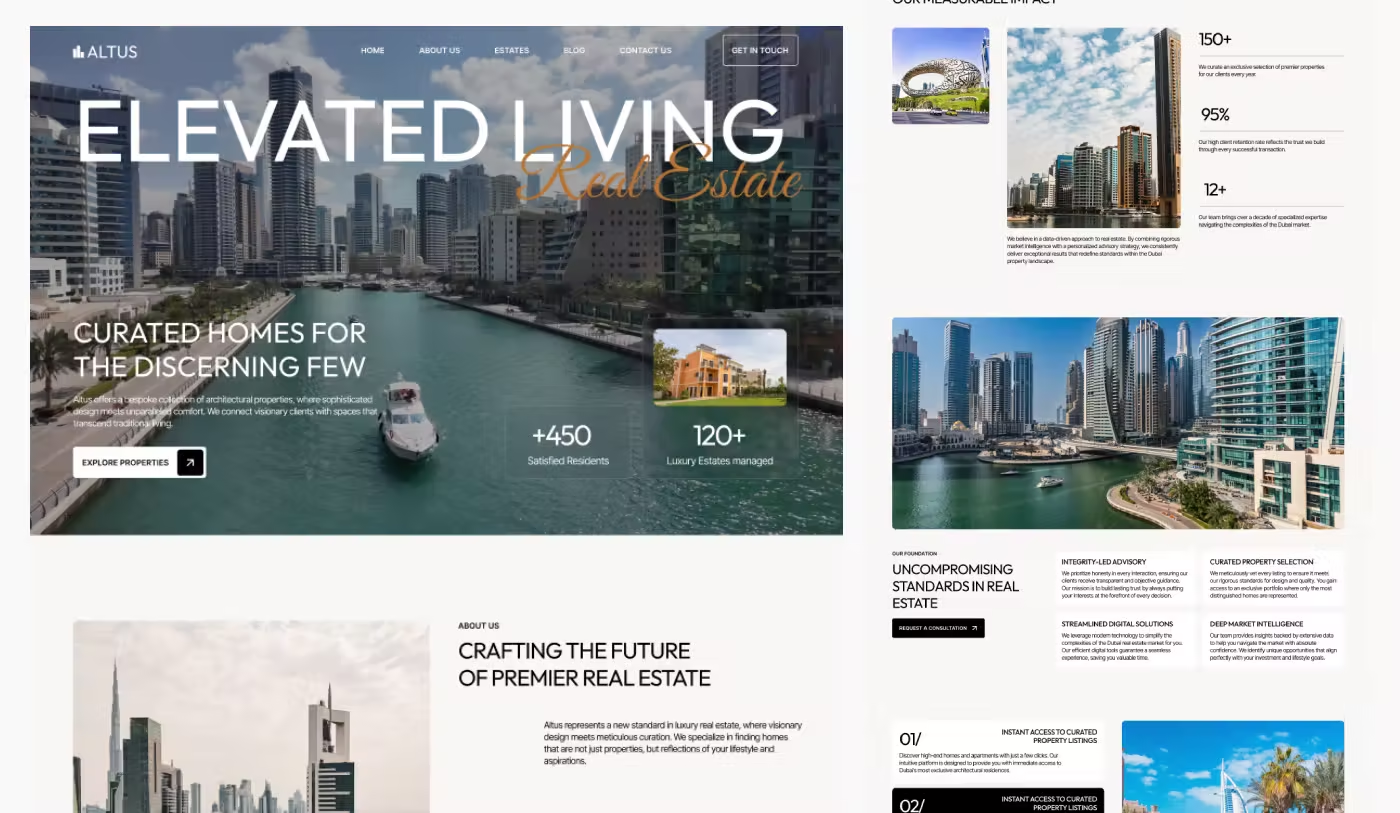
If you're building a real estate website, I recommend reviewing my Altuss Webflow Template to see how Webflow best practices can be applied to property listings and CMS-driven content.
Featured Properties
The homepage should include a section that highlights featured properties together with the latest listings.
Large Images
Property photos should be large enough for visitors to explore every detail of the property.
Schedule a Tour
The template should include a section where visitors can book a property viewing or contact an agent.
Interactive Map
An interactive map makes it much easier for visitors to understand where each property is located. Of course, this is not a complete checklist. The most important thing is to understand which features your business really needs before buying a template. If necessary, you can always hire a Webflow developer to customize the template for your project.
Common Mistakes When Choosing a Webflow Template
To summarize everything above, here are the most common mistakes people make when buying a Webflow template. Of course, the final decision depends on your project and the functionality you need. The most common mistakes are:
- Choosing a template based only on its design.
- Ignoring the CMS structure.
- Not reviewing the Style Guide or template documentation.
- Not checking responsive layouts on tablets and mobile devices.
- Ignoring Components and reusable sections.
- Not reviewing the Audits panel.
- Ignoring the heading hierarchy and page structure.
- Not checking how Variables are organized.
- Ignoring the use of REM units. According to modern Webflow best practices, spacing and typography should use REM instead of pixels whenever possible.
- Not reviewing animations and interactions before purchasing.
My Personal Checklist Before Buying a Webflow Template
Before buying any Webflow template, I always review this checklist.
- Variables
- Template methodology and class naming (if I see many empty class names like Div Block, it is usually a warning sign)
- Components
- CMS Collections
- Basic SEO settings
- Accessibility
- Responsive Design on every breakpoint
- Style Guide
Final Thoughts
Choosing the right Webflow template can save you not only money but also many hours of work in the future. Don't make your decision based only on the design. Spend some time reviewing at least the homepage, the CMS structure, Components, Variables, and the Style Guide. Among thousands of templates on the Webflow Marketplace, you will definitely find one that matches your goals and makes building your website much faster and easier.